Quick Summary: Keep your Apple Magic Mouse powered up and responsive with the right batteries. For most Magic Mouse models, standard AA alkaline batteries are the go-to. For a longer-lasting, eco-friendly option, rechargeable AA NiMH batteries offer great value and performance. Avoid non-standard or high-drain batteries to ensure optimal function and avoid potential issues.
Battery for Magic Mouse: Essential Power for Seamless Navigation
Is your Magic Mouse suddenly acting sluggish, or worse, refusing to connect altogether? A drained battery is often the culprit, interrupting your workflow and causing frustration. It’s a common issue for any wireless device, but thankfully, finding the right battery for your Magic Mouse is usually a simple fix. We’ll guide you through the best options, how to easily swap them, and what to look for to keep your Apple mouse performing its best.
Don’t let a dead battery stop your productivity. This guide will break down everything you need to know, from understanding battery types to extending their life. Let’s get your Magic Mouse back to full power!
Understanding Your Magic Mouse’s Power Needs
Apple’s Magic Mouse, in its various generations, has been designed for a clean, minimalist aesthetic, which extends to how it’s powered. Unlike many other wireless devices with built-in rechargeable batteries, the Magic Mouse traditionally relies on user-replaceable batteries. This has its advantages, mainly convenience and the ability to instantly get back to work by swapping out a depleted power source.
The key factor determining which battery is “essential” for your Magic Mouse is its specific model. While most generations use standard AA batteries, understanding the type can help you make the most informed choice for longevity, cost-effectiveness, and environmental impact.
Magic Mouse 1 & 2 Battery Differences
When discussing batteries for the Magic Mouse, it’s important to differentiate between the first and second generations:
- Magic Mouse (1st Generation): This model is famous for using two standard AA batteries. You’ll find a small compartment on the underside that easily pops open to reveal the battery slots.
- Magic Mouse (2nd Generation): This is where things shifted. The Magic Mouse 2 features an integrated, non-removable rechargeable lithium-ion battery. It charges via a Lightning port located on the underside. So, for the Magic Mouse 2, the concept of “battery replacement” isn’t applicable in the traditional sense; it’s about charging.
Given this distinction, our focus for replaceable batteries will be on the Magic Mouse (1st Generation) and any other Apple peripherals that may use similar power solutions.
Choosing the Right Battery for Your Magic Mouse (1st Gen)

For the Magic Mouse (1st Gen), you have a couple of primary options when it comes to AA batteries. Each has its own set of pros and cons.
Alkaline Batteries: The Standard Choice
Alkaline AA batteries are the most common and readily available batteries in the world. They are a straightforward solution for your Magic Mouse.
- Pros:
- Widely available at almost any store
- Inexpensive per pair
- Decent shelf life (they can sit unused for years without losing much charge)
- Cons:
- Lower energy density compared to some other types
- Not rechargeable, leading to ongoing costs and waste
- Can leak over time if left in a device for extended periods, especially if fully depleted
When buying alkaline batteries, brands like Duracell, Energizer, and store brands are all generally reliable. For a device like a mouse that isn’t a constant high-drain consumer, standard alkaline batteries should provide a reasonable amount of usage time.
Rechargeable NiMH Batteries: The Eco-Friendly Powerhouse
Nickel-Metal Hydride (NiMH) AA batteries are a fantastic rechargeable alternative. They offer more power and a significantly better long-term value for frequent users.
- Pros:
- Reusable for hundreds, if not thousands, of charge cycles
- Environmentally friendly, reducing battery waste
- Hold a charge better than older NiCd batteries
- Can offer higher capacity (mAh) for extended use
- Lower cost per use over time
- Cons:
- Higher upfront cost for batteries and a charger
- May lose some charge over time when not in use (self-discharge, though modern LSD NiMH batteries are much improved)
- Require a compatible NiMH battery charger
For the Magic Mouse (1st Gen), investing in a set of good quality rechargeable NiMH AA batteries, such as those from Eneloop (by Panasonic) or AmazonBasics, is often the most economical and sustainable choice. You’ll need to purchase a dedicated AA battery charger to go with them. A good charger will also manage the charging process safely and help prolong the life of your rechargeable batteries.
A quick note on Lithium AA batteries: While some specialty lithium AA batteries exist and offer superior performance in extreme temperatures or for high-drain devices, they are often overkill and more expensive for a mouse. Stick with alkaline or NiMH for typical household use.
How to Replace Batteries in Your Magic Mouse (1st Gen)
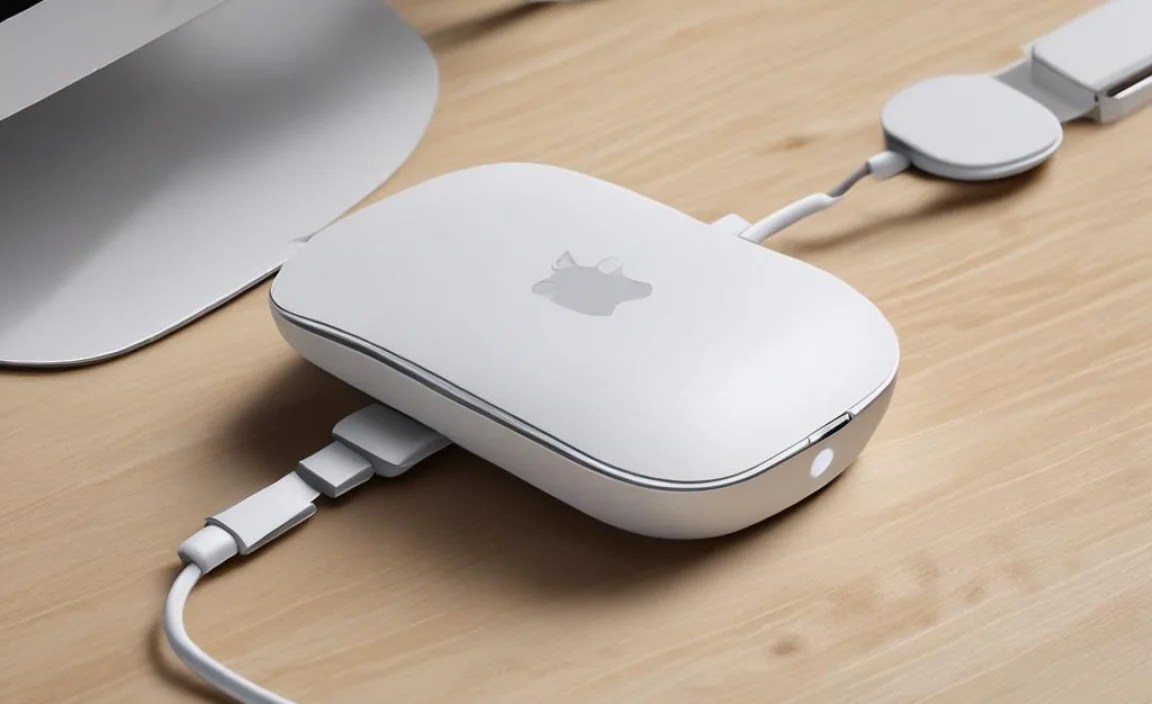
Replacing the batteries in your Magic Mouse (1st Gen) is incredibly straightforward. Here’s how to do it safely and efficiently:
- Turn off your Magic Mouse: On the underside of the mouse, there’s a small switch. Slide it to the ‘off’ position. This prevents accidental clicks or movements while you’re working and conserves battery life during the swap.
- Locate the battery cover: Look at the bottom of the mouse. You’ll see a discreet seam running around the central area. This indicates the battery compartment cover.
- Open the battery cover: For the 1st Gen Magic Mouse, you typically need to gently press the cover and slide it towards the back of the mouse. Some users find a fingernail or a plastic opening tool helpful, but generally, it’s designed to be opened by hand. Avoid using sharp metal objects that could scratch the mouse.
- Remove old batteries: Once the cover is off, you’ll see two AA batteries. Carefully remove them. If they appear bloated, corroded, or leaking, handle them with care and dispose of them properly. (More on disposal later).
- Insert new batteries: Take your new AA batteries (either alkaline or rechargeable NiMH). Pay close attention to the polarity markings (+ and -) inside the battery compartment. Most devices, including the Magic Mouse, have clear diagrams showing which way the batteries should face. Insert them correctly – they should slide in easily. If you have to force them, double-check the orientation.
- Replace the battery cover: Slide the cover back into place until it clicks or sits flush with the mouse body.
- Turn on your Magic Mouse: Slide the switch back to the ‘on’ position. Your computer should detect the mouse, and the scroll/movement functions should work again.
- Pair if necessary: In rare cases, if your Mac doesn’t immediately recognize the mouse, you might need to re-pair it via Bluetooth settings in macOS.
Safety Tips for Battery Replacement
Always keep these safety tips in mind when dealing with batteries:
- Never mix old and new batteries, or different types of batteries (e.g., alkaline with rechargeable) in the same device.
- Always insert batteries with the correct polarity (+ and -). Reversing polarity can damage the device or the batteries.
- Dispose of old batteries responsibly. Do not throw them in regular household trash. Check with your local municipality or electronics stores for battery recycling programs.
- If batteries are leaking, wear gloves and avoid touching the corrosive material directly. Clean the battery compartment with a dry cloth or a cotton swab slightly dampened with isopropyl alcohol if there’s any residue.
Caring for Your Magic Mouse Batteries
Keeping your Magic Mouse running smoothly involves a bit more than just swapping batteries. Here are some tips for maximizing battery life and care:
Extending Battery Life
- Turn it off when not in use: The simplest way to save power is to switch off your Magic Mouse (1st Gen) when you’re done using it for the day or stepping away from your computer for a while.
- Adjust tracking speed: In macOS System Settings (or System Preferences), you can adjust the tracking speed. A slower tracking speed may consume slightly less power, though the difference is usually negligible.
- Keep it clean: A dirty mouse sensor can cause erratic behavior and might, in some cases, draw more power as it struggles to track. Regularly clean the underside, especially the sensor area.
- Use quality batteries: As discussed, investing in good quality alkaline or rechargeable NiMH batteries will result in longer usage times between changes.
What to Do with Old Batteries
Proper disposal of used batteries is crucial for environmental protection. Alkaline batteries are less harmful than they used to be, but recycling is still the best option. Rechargeable batteries, especially NiMH and Lithium-ion (found in devices like the Magic Mouse 2), absolutely should not go into the regular trash due to the materials they contain.
Look for:
- Local recycling centers: Many municipal waste and recycling facilities have designated drop-off points for batteries.
- Retail drop-off programs: Some electronics stores, hardware stores, and even supermarkets partner with battery recycling organizations to offer collection bins.
- Mail-in programs: Several services offer boxes you can fill with batteries and mail back for recycling.
For instance, Call2Recycle is a prominent organization in North America that partners with many retailers to provide free battery recycling. You can often find drop-off locations through their website. Check out Call2Recycle.org for more information on where to recycle batteries in your area.
Magic Mouse 2: Charging, Not Replacing
As mentioned, the Magic Mouse 2 fundamentally changed the battery approach. Its built-in lithium-ion battery is designed to last for months on a single charge and is not user-replaceable. The primary interaction with its “battery” is charging.
How to Charge Your Magic Mouse 2:
- Locate the Lightning port on the underside of the mouse, towards the back.
- Connect a Lightning to USB cable to the port.
- Plug the other end of the cable into a USB power adapter, a powered USB hub, or directly into a USB port on your Mac.
It’s important to note the quirk of the Magic Mouse 2’s charging port location. When charging, you cannot use the mouse, as the port is on the bottom. Apple’s documentation suggests a quick charge of about two minutes can give you approximately nine hours of battery life, making it convenient for a quick top-up.
For those concerned about the lifespan of the internal battery in the Magic Mouse 2, like any rechargeable battery, it will degrade over time. After several years of use, you might notice it holds less charge. In such cases, the only recourse is replacement of the entire Magic Mouse 2 unit, as the battery itself is not designed to be serviced by the end-user.
Beyond the Magic Mouse: General Battery Knowledge
While the Magic Mouse is our focus, understanding basic battery principles applies to many devices, from your smartphone to your car.
Battery Types at a Glance
Here’s a quick comparison of common battery types:
| Battery Type | Common Uses | Rechargeable? | Pros | Cons |
|---|---|---|---|---|
| Alkaline | Remote controls, toys, flashlights, standard AA/AAA devices | No | Cheap, widely available, long shelf life | Disposable, lower energy density, can leak |
| NiMH (Nickel-Metal Hydride) | Digital cameras, rechargeable AA/AAA devices (like Magic Mouse 1st Gen), power tools | Yes | Good capacity, environmentally friendlier than alkaline if recharged, lower cost per use | Higher upfront cost, self-discharge (though improved in modern types) |
| Lithium-ion (Li-ion) | Smartphones, laptops, tablets, EVs, Magic Mouse 2 | Yes | High energy density, lightweight, long lifespan | More expensive, requires complex charging circuits, potential safety concerns if damaged |
| LiFePO4 (Lithium Iron Phosphate) | Some power tools, larger battery systems, RVs, solar storage | Yes | Very safe, long cycle life, stable | Lower voltage than some Li-ion, can be heavier |
| Lead-Acid | Car batteries, backup power (UPS) | Yes | Robust, high cranking amps (for cars), relatively inexpensive | Heavy, lower energy density, requires maintenance (in some types), environmental concerns |
Car Battery Specifics: A Different Beast
While your Magic Mouse uses AA batteries, your car relies on a much beefier Lead-Acid battery. These batteries provide the massive electrical jolt needed to start your engine and power all the car’s electronics when the engine is off. Unlike a mouse, a car battery requires a specific charger designed for its high power output and voltage. Regular attempts to charge a car battery with an unsuitable charger can be dangerous. For car batteries, it’s usually best to consult your vehicle’s manual or a professional. Tools like a multimeter are helpful for checking car battery voltage, but replacement is a job best handled with proper safety gear and knowledge, often by a mechanic or a seasoned DIYer.
Power Banks and Phone Batteries
Your phone and portable power banks are prime examples of devices using Lithium-ion technology. A power bank is essentially a large rechargeable battery designed to charge other devices via USB. When choosing a power bank, look at its capacity (measured in mAh) and output ports (USB-A, USB-C, etc.). For phone batteries, especially in modern smartphones, they are almost always integrated and non-removable. When a phone battery starts to degrade significantly, the phone is often sent for professional battery replacement services, or the user may consider replacing the entire device.
Frequently Asked Questions About Magic Mouse Batteries
Here are some common questions beginners might have about powering their Magic Mouse:
Q1: Can I use any AA battery in my Magic Mouse (1st Gen)?
A: For the Magic Mouse (1st Gen), you should use standard AA batteries. Alkaline or rechargeable NiMH AA batteries are the best choices. Avoid using 1.5V lithium AA batteries, as they can be too powerful for the mouse and potentially cause damage due to their high voltage and discharge rate. Always ensure the batteries fit and are inserted with the correct polarity.
Q2: How often do I need to change batteries in my Magic Mouse?
A: This varies greatly depending on usage and battery type. With standard alkaline batteries, you might get a few months of regular use. With good quality rechargeable NiMH batteries, you might get similar or slightly longer use per charge, but then you recharge them instead of replacing them. Heavy users will deplete batteries faster than light users. For Magic Mouse 2, a full charge can last around a month or more of typical daily use.
Q3: My Magic Mouse isn’t connecting after changing batteries. What should I do?
A: First, ensure the mouse is turned on and the batteries are inserted correctly with the proper polarity. Try removing and reinserting them. Even if they seem correct, try a fresh pair of batteries. If it’s a 1st Gen mouse, you might need to re-pair it with your Mac. Go to System Settings > Bluetooth and look for your Magic Mouse. You may need to remove it and then add it again.
Q4: Are rechargeable batteries worth it for my Magic Mouse?
A: Absolutely, especially for the Magic Mouse (1st Gen). While the initial cost of rechargeable batteries and a charger is higher, they save you money in the long run and significantly reduce battery waste. High-quality rechargeable AAs, like those from Panasonic Eneloop, are excellent and hold their charge well.
Q5: My Magic Mouse 2 is not charging. What’s wrong?
A: Ensure you are using a known-good Lightning cable and a reliable power source (tested with another device if possible). Check the Lightning port on the mouse for any debris that might be blocking the connection. Try a different USB port or adapter. If the problem persists, the internal battery or charging circuitry may be faulty, and you might need to contact Apple Support.