Struggling with a dead Surface Pen? This guide shows you exactly how to find and replace the correct battery to get your pen back to full power fast. We break down the simple steps, common battery types, and quick tips for endless creativity.
Does your Surface Pen suddenly stop responding when you’re deep in a design or note-taking session? It’s a common frustration, throwing a wrench into your workflow. Don’t worry, it’s usually a simple fix! Most Surface Pens use standard batteries that are easy to replace. This guide will walk you through everything you need to know, from identifying the right battery to swapping it out without a hitch. Get ready to bring your Surface Pen back to life and keep your ideas flowing.
Understanding Your Surface Pen Battery
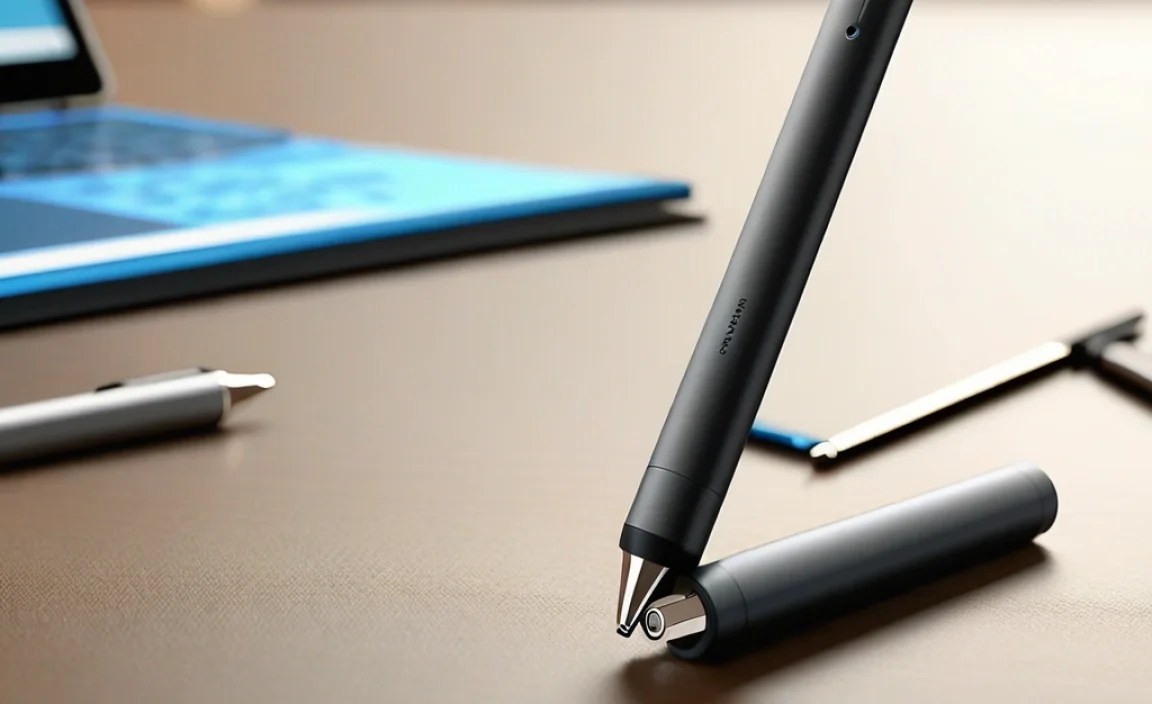
Your Surface Pen is a fantastic tool, but like any piece of technology, it needs power. The battery is the heart of its functionality. Knowing which battery your specific Surface Pen model uses is the first step to keeping it ready for action.
Common Surface Pen Battery Types
Microsoft has used a couple of different battery types in their Surface Pens over the years. The most common ones are:
- AAAA Alkaline Batteries: These are the most frequently used batteries in many Surface Pen models, including the original Surface Pen and the Surface Pen with single button. They’re readily available and easy to find.
- Rechargeable Batteries: Some newer Surface Pen models, like the Surface Slim Pen and Surface Pen with tilt and palm rejection, have built-in rechargeable batteries. These don’t require manual battery replacement but need regular charging via a special charging tip or dock.
It’s crucial to check your specific pen model because using the wrong battery type can cause damage or simply won’t work.
How to Identify Your Surface Pen Model
Not sure which Surface Pen you have? Here are a few ways to figure it out:
- Check the Pen Itself: Look for any model numbers or names printed on the pen. They are often found on the lower barrel or near the eraser/top end cap.
- Check Your Purchase History: If you bought it online, your order history on Microsoft’s website or your retailer’s page should list the exact model.
- Compare Online: Search for images of different Surface Pens online and compare them to yours. Features like the number of buttons, shape, and connector type can help you identify it.
Replacing the Battery in Your Surface Pen (AAAA Type)

If your Surface Pen uses a removable AAAA battery, the process is straightforward. Here’s a step-by-step guide:
Tools You’ll Need
For most AAAA battery replacements, you won’t need many specialized tools. Typically, you’ll only need:
- A new AAAA battery (check your pen’s manual or our comparison table below to be sure).
- A soft cloth (optional, for cleaning).
Step-by-Step Replacement Guide
- Locate the Battery Compartment: On most Surface Pens that use AAAA batteries, the battery compartment is hidden within the pen’s barrel, usually accessed by unscrewing the pen’s tip or the top end cap. Look for a seam or a section that twists apart.
- Unscrew the Tip/Cap: Gently twist the tip section of the pen counter-clockwise. It might require a firm but not forceful grip. Some pens might have a removable top cap instead. If you’re unsure, consult your pen’s manual or look for video guides specific to your model.
- Remove the Old Battery: Once the compartment is open, you should see the AAAA battery. You might be able to slide it out easily by pushing gently from the other end or by using the tip of another, non-metal object (like a plastic pen cap) to ease it out. Avoid using metal objects that could scratch the inside.
- Insert the New Battery: Make sure you have the correct AAAA battery. Note the +/- indicators on the battery and the compartment. Typically, the positive (+) end of the battery goes towards the tip of the pen, and the negative (-) end goes towards the eraser or cap. Align the new battery correctly and slide it in.
- Reassemble the Pen: Screw the tip or cap back onto the pen, twisting clockwise until it’s secure. Don’t overtighten.
- Test Your Pen: Open a note-taking app or drawing program on your Surface device and test if your pen is working. If it doesn’t, double-check that the battery is inserted correctly and that it’s a fresh, working battery.
Important Safety and Care Tips for AAAA Batteries
While AAAA batteries are common and safe, a few precautions will keep you and your pen in good shape:
- Use Quality Batteries: Opt for reputable brands of AAAA alkaline batteries. Cheap, unbranded batteries can leak or fail prematurely. Brands like Energizer, Duracell, and Panasonic are reliable choices. You can find them at most drug stores, supermarkets, or electronics retailers.
- Handle with Care: Avoid dropping batteries or exposing them to extreme temperatures.
- Proper Disposal: Dispose of old batteries responsibly. Check with your local waste management services for battery recycling programs. Never throw them in regular trash.
- Keep it Dry: Moisture can damage batteries and the pen’s internal components.
Surface Pen Models and Their Battery Requirements

Navigating which Surface Pen takes which battery can sometimes be confusing. Here’s a quick rundown of some common models and their power sources:
| Surface Pen Model | Battery Type | How to Replace/Recharge | Notes |
|---|---|---|---|
| Surface Pen (original) | 1 x AAAA Alkaline | Unscrew tip, replace battery. | Older model, often came with original Surface devices. |
| Surface Pen with Single Button | 1 x AAAA Alkaline | Unscrew tip, replace battery. | Similar to the original, button on top. |
| Surface Pen (for Surface Pro 3 and later) | 1 x AAAA Alkaline | Unscrew tip, replace battery. | Commonly bundled with newer Surface devices. |
| Surface Slim Pen | Built-in Rechargeable | Place in charging cradle/dock. | Sleeker design, magnetic attachment for charging. |
| Surface Slim Pen 2 | Built-in Rechargeable | Place in charging cradle/dock or use with compatible devices. | Enhanced haptics, improved performance. |
| Microsoft Classroom Pen | 1 x AAAA Alkaline | Unscrew tip, replace battery. | Designed for educational environments. |
| Wacom Bamboo Ink | 1 x AAAA Alkaline | Unscrew top cap, replace battery. | A popular third-party alternative compatible with many Surface devices. |
Note: Always refer to your specific Surface Pen’s manual for the most accurate battery information, as variations can occur.
Recharging Your Surface Slim Pen or Surface Pen with Built-in Battery

If you have a Surface Slim Pen or the newer Surface Pen with tilt and palm rejection, you won’t be unscrewing anything to replace a battery. These pens feature internal rechargeable power cells. Here’s how to keep them charged:
Charging Methods
Your Surface Pen might come with a specific charging solution:
- Charging Case/Dock: Many Surface Slim Pens are designed to be magnetically attached to a charging dock or case. This dock connects to your PC or a power adapter via USB. Simply place the pen in the dock, and it starts charging.
- USB-C Charging: Some newer pens might have a USB-C charging port discreetly located on the pen itself or on an included adapter.
- Direct Charging (less common): A few models might allow direct charging through a specific port, but this is less common for Surface Pens.
Tips for Optimal Charging
- Use the Official Charger: Always use the charger that came with your pen or an official Microsoft accessory. Third-party chargers might not provide the correct power, potentially damaging the battery or pen.
- Charge Fully: For the first few uses, it’s a good idea to let the battery charge completely. Most modern batteries don’t suffer from “memory effect,” but a full charge ensures you start with maximum uptime.
- Store Appropriately: When not in use, store your pen in its charging dock or a safe place to prevent accidental damage.
- Monitor Battery Health: While you can’t replace the battery yourself, if you notice significantly reduced battery life over time, it might be a sign the internal battery is nearing the end of its lifespan, and you may need to consider a replacement pen.
Keeping your rechargeable Surface Pen charged is as simple as placing it on its charging base when you’re done for the day. It’s designed to be an effortless part of your workflow.
Troubleshooting Common Surface Pen Battery Issues
Even with the right battery, sometimes your pen might act up. Here are a few common issues and how to fix them:
Pen Not Responding at All
Possible Causes:
- Dead or drained battery.
- Battery inserted incorrectly.
- Pen is not paired with your device.
- Pen is not turned on.
Solutions:
- Replace the battery with a fresh one, ensuring correct orientation.
- Check your Surface device’s Bluetooth settings to ensure the pen is paired and connected. You might need to “Add a device” or “Remove” and re-pair the pen.
- Some pens have a small button to wake them up; try pressing it.
Intermittent Connection or Lag
Possible Causes:
- Weak battery.
- Interference from other Bluetooth devices.
- Pen tip is worn out.
- Software glitches.
Solutions:
- Replace the battery. Even if the pen works, a low battery can cause performance issues.
- Turn off other unused Bluetooth devices to minimize interference.
- Consider replacing the pen tip if it looks worn. Replacement tips are usually inexpensive and can make a big difference. Visit Microsoft’s official store for pen tips for genuine replacements.
- Restart your Surface device. Sometimes a simple reboot can resolve connectivity issues.
Pen Works in Some Apps But Not Others
Possible Causes:
- App-specific settings or permissions.
- App compatibility issues.
Solutions:
- Check the settings within the app you are using. Some apps allow you to disable pen input or have specific configuration options.
- Ensure your apps and Windows are up to date. Updates often contain bug fixes for hardware compatibility.
Rechargeable Pen Not Charging
Possible Causes:
- Charging dock or cable is not properly connected.
- Dirt or debris on the charging contacts.
- Faulty charging accessory or pen.
Solutions:
- Ensure the charging dock is securely plugged into a power source (like a USB port on your Surface or a wall adapter).
- Gently clean the charging contacts on both the pen and the dock with a dry, soft cloth or a cotton swab.
- Try a different USB cable or a different USB port if using a dock.
- If the issue persists, your charging accessory or the pen itself might be faulty. Contact Microsoft Support for further assistance.
When to Consider a New Surface Pen
While batteries can be replaced (or rechargeable pens recharged), there comes a time when a pen might be past its prime. Consider getting a new Surface Pen if:
- Your pen consistently fails to respond, even after replacing or recharging the battery and trying all troubleshooting steps.
- The pen body is physically damaged (cracked, bent, or components are loose).
- Your Surface Pen has significantly reduced battery life that even a new battery or full charge can’t improve, and the internal rechargeable battery is exhausted.
- You need advanced features not available on your current pen, like tilt or improved pressure sensitivity.
If you’re looking for a new pen, explore the latest Surface Pen options on Microsoft’s official site to find one that best suits your needs and Surface device.
Frequently Asked Questions About Surface Pen Batteries
Q1: What kind of battery does a Surface Pen use?
Most Surface Pens use one (1) AAAA alkaline battery. Some newer models, like the Surface Slim Pen and Surface Pen with tilt and palm rejection, have built-in rechargeable batteries.
Q2: Where can I buy AAAA batteries for my Surface Pen?
AAAA batteries are readily available at most electronics stores, supermarkets, drugstores (like CVS, Walgreens, Walmart), and online retailers such as Amazon. Look for reputable brands like Energizer, Duracell, or Panasonic.
Q3: How do I know if my Surface Pen battery is low?
You’ll usually notice the pen becoming less responsive, laggy, or completely stopping. Some Surface devices might also show a battery percentage indicator for the pen in Bluetooth settings. If it’s a rechargeable model, it might show low battery warnings in the Surface app.
Q4: Can I use a rechargeable AAAA battery?
Yes, you can use rechargeable AAAA batteries (like NiMH). However, ensure they maintain a consistent voltage and note that their voltage might slightly differ from alkaline batteries, which could affect pen performance in rare cases. Always check the battery manufacturer’s specifications.
Q5: How long does a Surface Pen battery last?
Battery life varies greatly depending on usage and the specific pen model. For AAAA batteries, typical usage might see them last anywhere from 3 to 12 months. For rechargeable pens, a full charge can last for many hours of active use, and they can be recharged hundreds of times.
Q6: My pen still isn’t working after changing the battery. What should I do?
First, double-check that the battery is inserted correctly with the right polarity (+/-). Try a different, brand-new battery to rule out a faulty new one. Ensure your pen is properly paired with your Surface device via Bluetooth. If it’s a rechargeable pen, make sure it’s fully charged. If problems persist, you may need to reset the pen or contact Microsoft Support.
Q7: How do I reset my Surface Pen?
There isn’t a universal “reset” button for all Surface Pens. For pens with AAAA batteries, removing and reinserting the battery can sometimes help. For Bluetooth pairing issues, try removing the pen from your device’s Bluetooth list and re-pairing it. For specific model resets, consult your pen’s manual or Microsoft’s support pages.